
In the previous guides, we have spoken about intent and covered how intent reports are created. In this guide we shall cover how a created intent report looks like, what data it can surface, how frequently the data updates and so on. This guide is agnostic on the intent report type(applies to both Buyer Journey and Custom intent reports)
We start from the intent report table displaying all intent reports we have created:

At a glance, we can see how many accounts are in scope of each intent report, when our intent report was last updated and when it was created. In the right, we have actions allowing us to Export, access Settings, Clone or Delete an intent report: 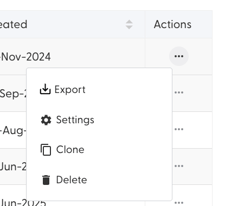
Clicking on a name of an intent report takes us into the data that intent report has collected:
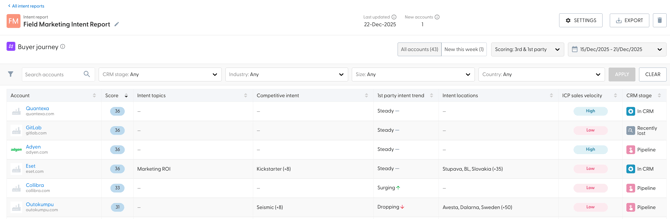
Starting at the top of the page, the pencil icon next to the name allows us to rename our intent repot. On the right-hand side, we can see the link to the settings where we can re-configure all aspects of our intent report (target and exclusion segments, 1st party and 3rd party elements we have covered when creating an intent report) Export allows us to generate an .xls file from either all accounts in our intent report, or a filtered selection.
Speaking of filters, we can filter accounts by name, CRM stage they belong to, industry, size and country. Any filters be we have selected will be applied to the table underneath it upon clicking the Apply button next to the filters. the Clear button will remove any filters currently applied.
Above the filters we have the ability to display all accounts that belong to this intent reports only the new ones, as well as to display only 1st, 3rd or a combination of both 1st and 3rd party data. Next, we can see the week picker, which leads us to an important point - all intent data is refreshed on a weekly basis (every Sunday evening from the perspective of central European time)
Looking at the table itself, each account name links us to the account overview of that specific account.
Hovering over the score, we can see what is the 1st and 3rd party intent score for this specific account: 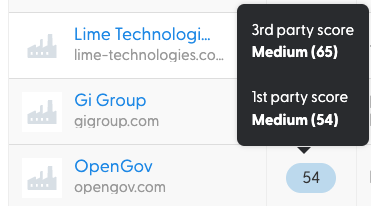
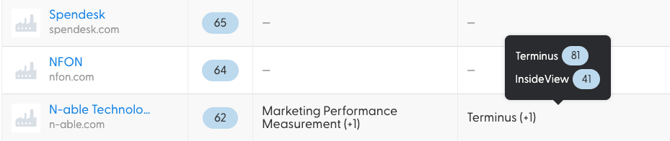
The intent topics and Competitive intent columns indicate which topics and competitors we have detected intent signals for and what their individual scores are: 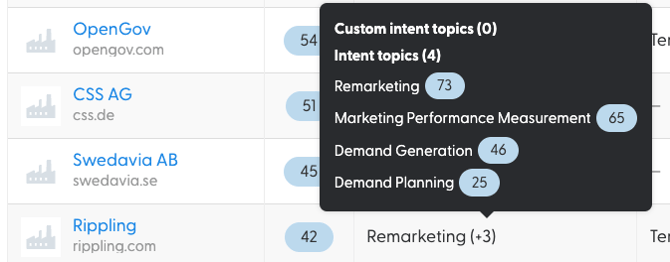
Next up, we can see the 1st party intent trend which can be:
- Surging - in case it has risen more than 10 points since last week
- Steady - in case it changed by less than 10 points since last week
- Dropping - in case it dropped by more than 10 points since last week
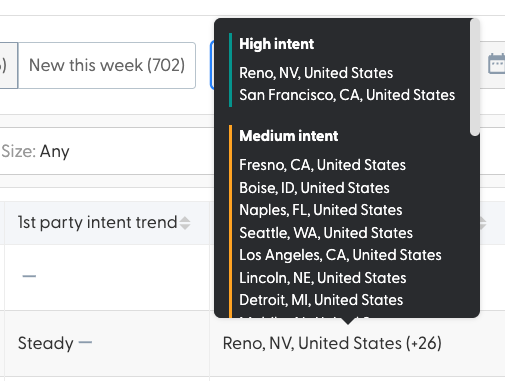
Intent locations reveal where precisely are we seeing intent of which strength:
Next we have a reference to our sales velocity analytics feature for this specific account (High, Medium or Low)
Last, but not least, we can see the CRM stage each account in scope of our intent report is in.
From here, it makes sense to dive into the Buyer Journey intent report.