This feature is in beta and available to a limited number of customers leveraging the Hubspot CRM integration. It requires at least 2 months of N.Rich usage before becoming a valuable asset.
Accessing the dashboard is done via navigating to Analytics > GTM Leader Dashboard
🇪🇺: https://app.nrich.ai/analytics/gtm-leader
🇺🇸: https://us.nrich.ai/analytics/gtm-leader
Currently, you can only filter the dashboard to display the stats of last week, last three months or all time, while it is not possible to get more granular.
The dashboard itself features 6 different tabs and this article aims to zoom in on each one, beginning from the first tab that loads upon visiting this dashboard when navigating to Analytics > GTM leader Dashboard - the Progression tab: 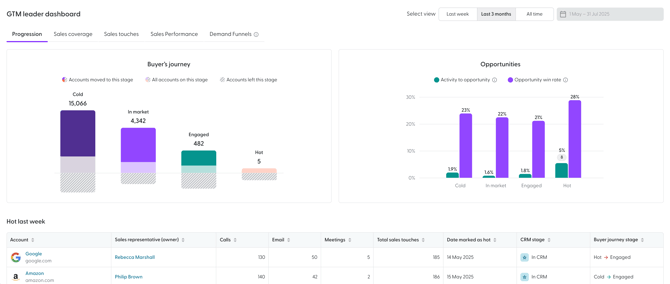
Lets zoom in on the three elements featured on the Progression tab, starting with the Buyer's journey: 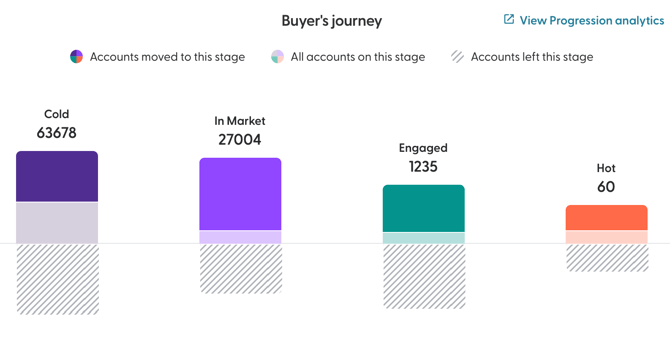
This gives you a view of your default intent report (configured in settings) and how accounts have progressed between the 4 pre-determined stages of Cold, In Market, Engaged and Hot (you can find these definitions here LINK)
Hovering over any of the bar areas will reveal exactly how many new accounts have entered a stage (full colour) How many are in this stage in total (full and faint colour) as well as how many accounts have left this stage in the given time period (diagonal lines)
You can learn more about progression analytics and how they work here.
On the right, we can the next chart - the Opportunities: 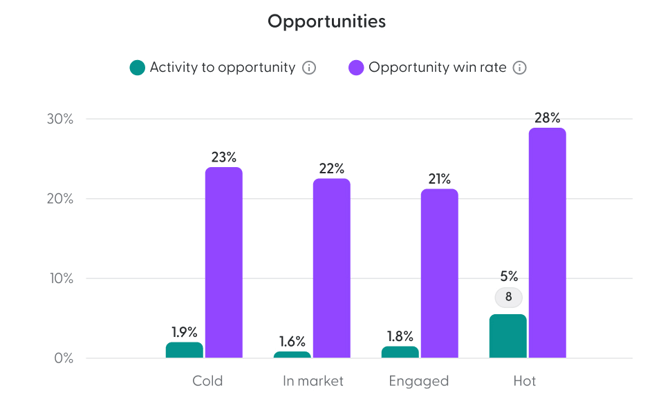
Here you can see the Sales Activity to Opportunity which indicates how many accounts in a stage began to be considered as opportunities after sales outreach, as well as the win rate of opportunities in different progression stages.
At the bottom, we have the large table giving us insights about individual Hot accounts, including who the owner is in the connected CRM and how many calls, emails, meetings and total sales touches there were in the specified time frame. Additionally, we can see when a specific account started to be considered as hot, what is their current CRM stage and how they transitioned between their previous and current stage.
Moving on to the Sales coverage tab: 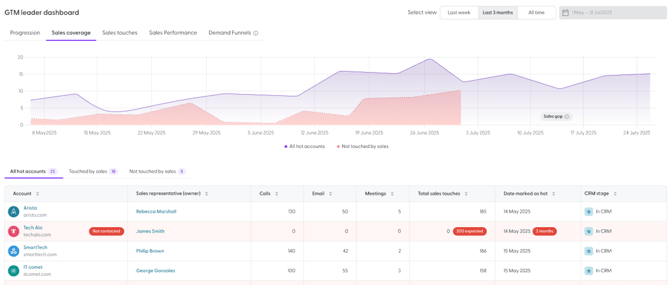
The main graph includes two areas with one lagging behind the other - purple indicates all hot accounts N.Rich knows of, while the red indicates the hot accounts that N.Rich can see no evidence of your sales team interacting with. The lag is introduced on purpose to avoid setting the expectation where the sales team must reach out to any hot accounts immediately (essentially giving them a bit of leeway to plan their approach)
Bellow we have three sub-tabs that are self-explanatory - the same "All hot accounts" featured in the previous tab as well as a split to those hot accounts that do and do not have any recorded sales outreaches.
The Sales touches tab gives you a pulse of your sales activities:
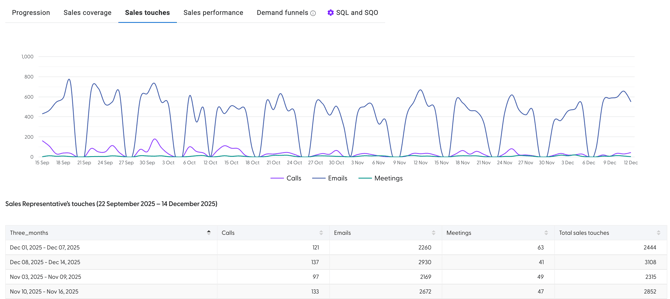
It features the week-by-week activity log of calls, emails and meetings done by your sales organisation.
The Sales performance tab zooms into the performance of your sales organisation and individuals within it: 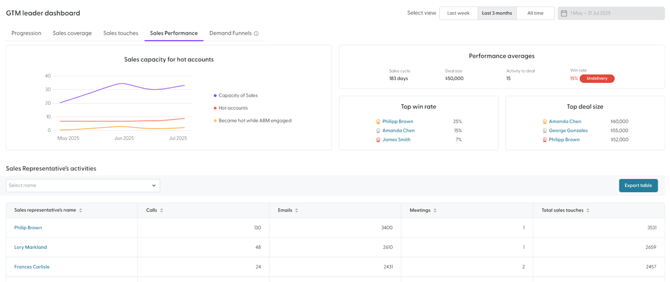
Starting form the sales capacity which indicates the total number of sales touches, hot accounts and accounts that become hot due to ABM engagements over time.
The performance averages give you the high-level, team-wide results on the sales cycle, deal size and the number of activities before a deal is closed, followed by the win rate.
Bellow, Sales reps are compared by win rate and deal sizes.
In the table at the very bottom, you can see the activity rates per sales rep as well as export this table. It is also possible to click on a name of a sales rep (or choose them from the drop down) to zoom in on the performance of a single sales representative.
Demand funnels on the other hand unearth details of your Inbound, Outbound and Mixbound (combined sales and marketing) motions: 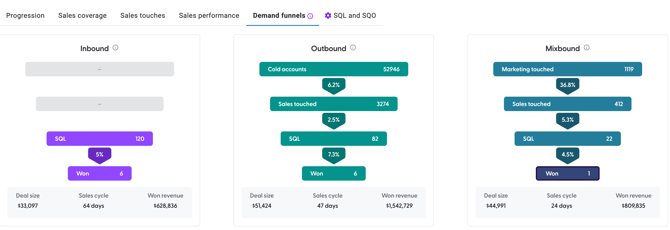
Clicking on any of the bars, will display the accounts in this specific cohort in the table bellow these funnels and hovering over each will give you a description of how each stage of the funnel is determined.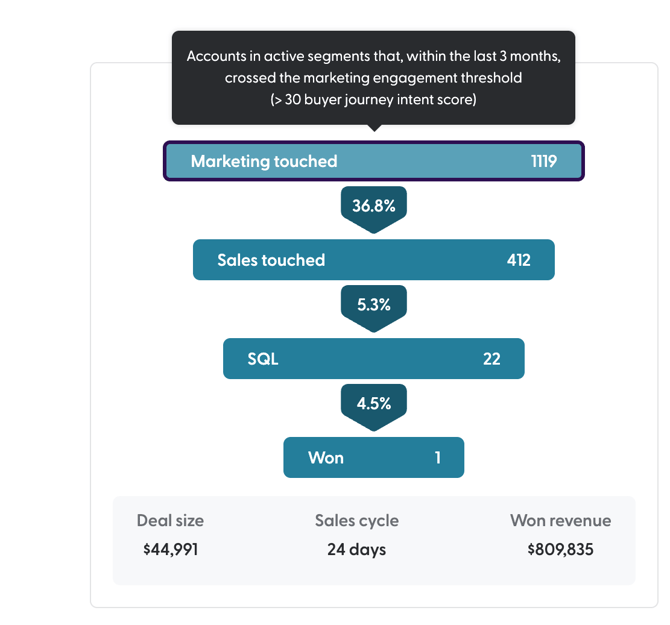
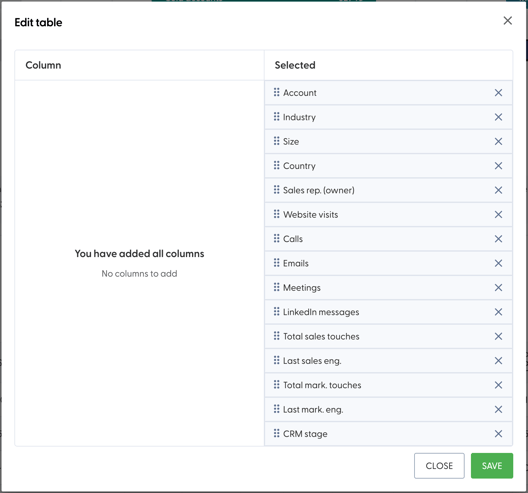
The data in the table underneath you can export as well as define which columns you wish to include or exclude: