
The Workflow Dashboard in N.Rich gives you a centralized view of all workflows configured in your account. From here, you can quickly understand what automations are active, what triggers them, and when they were last executed. This makes it easy to manage, audit, and optimize your workflows.
Accessing the Workflow Dashboard
To access the Workflow Dashboard:
- Navigate to Workflows from the main menu.
- You’ll be taken to a list view displaying all existing workflows in your account.
Workflow Dashboard Overview
The Workflow Dashboard presents workflows in a table format, allowing you to scan key details at a glance. Each workflow row includes the following information:
- Name - Displays the workflow name. If a workflow has not been named, it will appear as No name. Clicking the name of the workflow opens its configuration and you can edit it here.
- Workflow - A short description of the workflow logic, including:
- The trigger condition (e.g., when an account reaches a specific intent score)
- The data being used.
- The action taken (e.g., add or sync an account to a segment)
- The segment(s) being updated.
- Source - Indicates the data source triggering the workflow, such as Intent, ICP, Advertisement.
- Created - Shows the date the workflow was created.
- Last Executed - Displays the most recent date the workflow ran successfully.
- Trashcan icon - Click on this to delete the workflow (after confirming deletion)
Managing Workflow Status
Each workflow row includes a toggle switch on the left side.
- Enabled (On): The workflow is active and will run when conditions are met. The toggle is enabled in the screenshot above.
- Disabled (Off): The workflow is paused and will not execute.
This allows you to quickly enable or disable workflows without deleting them.
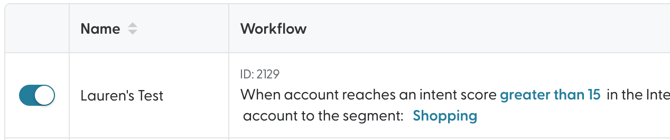
In the example above, the Workflow is enabled.
Creating a New Workflow
To create a new workflow:
- Click + Create workflow at the top left of the page.
- Select your data source(s).
- Define your trigger conditions (such as intent score thresholds).
- Select the action to perform, such as adding or syncing accounts to a segment.
- Save and enable the workflow.
We detail how to create each type of Workflow in their respective articles.
Searching and Filtering Workflows
At the top of the dashboard, you’ll find tools to help locate workflows quickly:
- Search bar - Search by workflow ID, name, segment, campaign, or intent report.
- Source filter - Filter workflows by their source (e.g., All Sources, Intent, Website, etc).
Deleting Workflows
Each workflow row includes a delete icon (trash can) on the far right. Deleting a workflow will permanently remove it and stop any future executions.
Deletion cannot be undone. Consider disabling a workflow instead if you may need it later.
To delete a Workflow
1. Click on the trash can icon for the Workflow in question which will bring up the dialog box below:
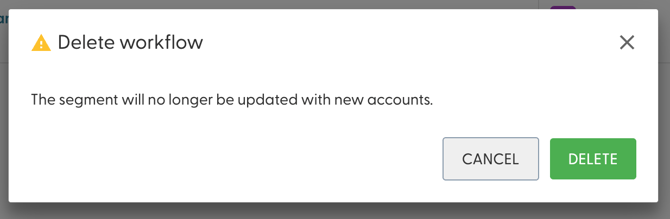
- Click on Delete to complete the process.
Best Practices
- Use clear, descriptive names to make workflows easy to identify.
- Regularly review the Last executed date to ensure workflows are running as expected.
- Disable outdated workflows instead of deleting them if you may need to reference them later.