
CRM-based workflows let you automatically keep your N.Rich segments in sync with your CRM. They help teams stay organized, reduce manual work, and ensure actions are always based on up-to-date information.
There are two options that you can choose from when creating CRM-based workflows. They are:
-
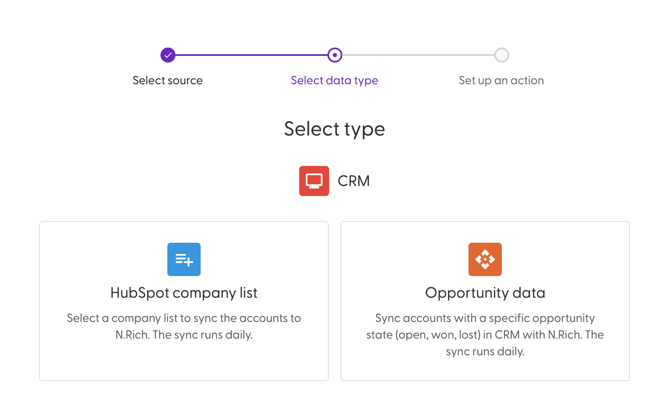
Company list: Allows you to select a company list in your CRM platform to sync accounts over to N.Rich. Great for making sure marketing and sales are always working with the right accounts.
-
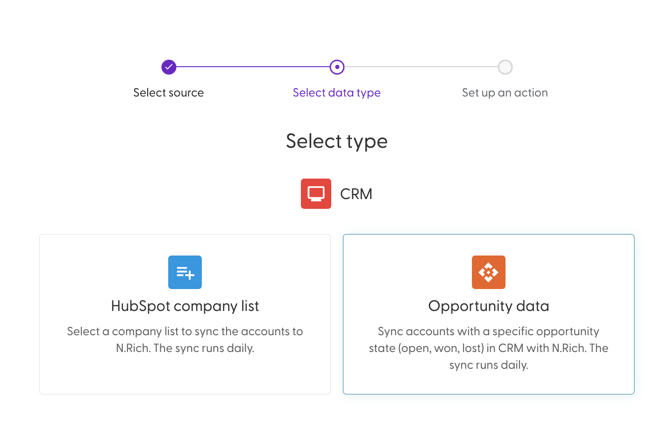
Opportunity data: Allows you to sync accounts with a specific opportunity state (open, won, lost) in your CRM with N.Rich. Helps you to take action based on key opportunity events so your team stays focused on what matters most.
How to Create CRM-Based Workflow using Company List
To use CRM as a data source, you need to have CRM integration enabled. Please review the following articles for more on how to set this up:
- Navigate to the Workflow tab.
- Click on + Create workflow.
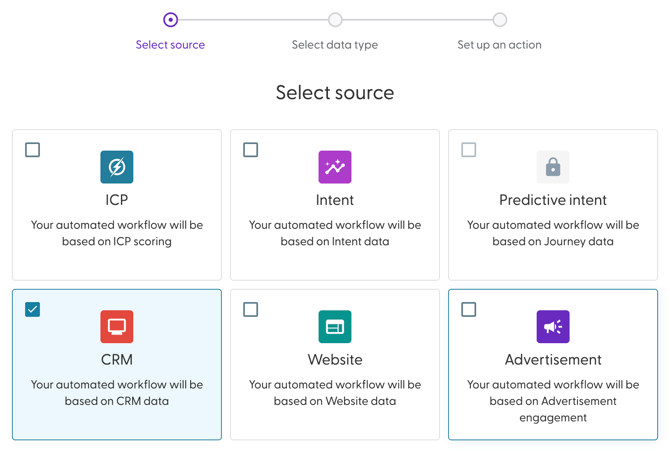
- Select CRM and click on Next.
- Next, select Company list.
- Enter a name for your Workflow.
- Choose the list that should be synced over to N.Rich when it is updated in your CRM
- The only action that can be taken by default is to Sync.
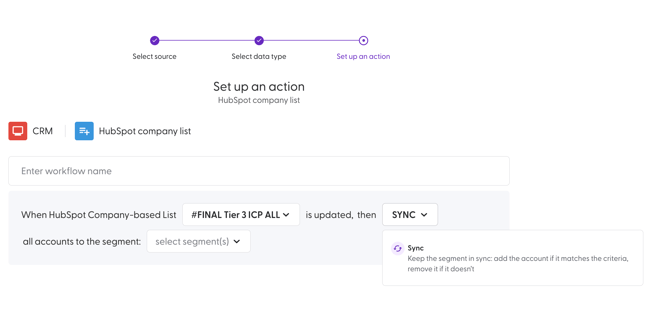
- Next, select the segment(s) that should be updated by the Workflow. There is no limit to the number of segments that you can choose here. You can also create a segment from this modal as well.
- Click Create to complete the creation process.
TheWorkflow will be active by default once created. Additionally, workflows are executed at least once per day. They can be executed multiple times per day, depending on the data source
How to Create CRM-Based Workflow using Opportunity data
Use opportunity-based workflows when you want actions to trigger automatically based on key changes in your CRM, such as an opportunity being won, created, or closed. You can further refine these workflows using time-based conditions like applying them at any time, after a specific date, or within the last X days. These workflows are especially helpful for keeping revenue-related actions and account management running smoothly without manual effort.
- Navigate to the Workflow tab.
- Click on + Create workflow.
- Select CRM and click on Next.
- Next, select Opportunity data.
- Enter a name for your Workflow.
- Next, select the account type that should be taken into consideration. You can choose between:
- Any account
- Net new account
- Existing client
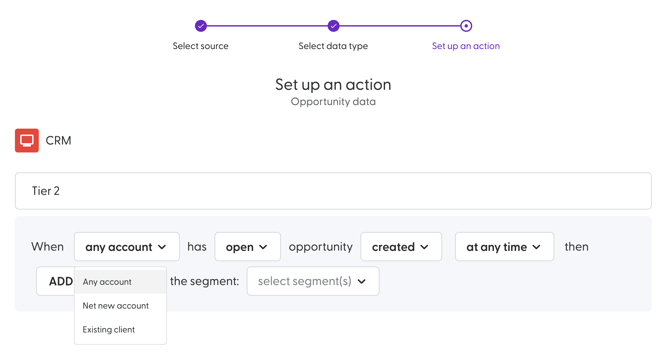
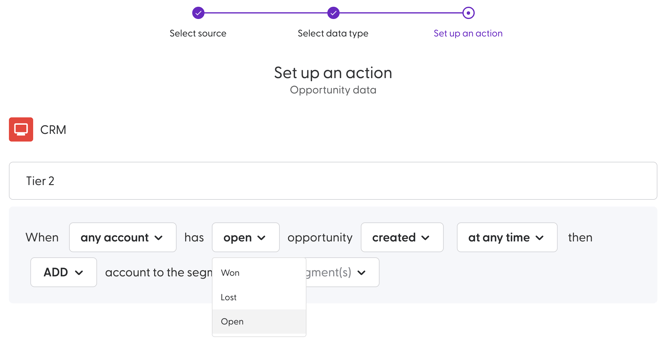
- Select the opportunity type. The options are Won, Lost and Open
- Next, select the opportunity event . You can choose one of the following opportunity events:
-
Created: Triggers when a new opportunity is created
-
Closed: Triggers when an opportunity is closed
-
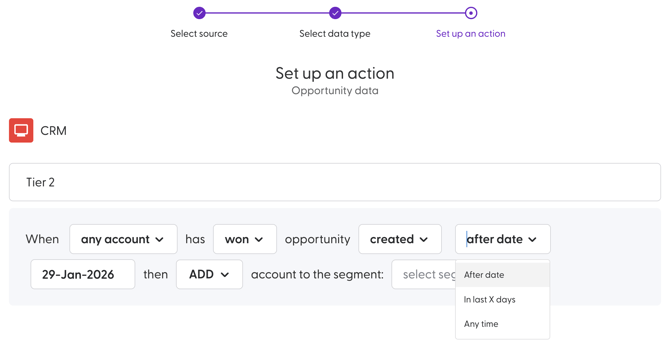
- Set the time frame. Choose from one of the following:
-
Any time: Includes all historical and future opportunities
-
After date: Only applies to opportunities after a specific date.
-
In last X days: Only applies to recent opportunities within a set amount of days
-
- Choose action that should be taken. You can choose to either add, move or remove.
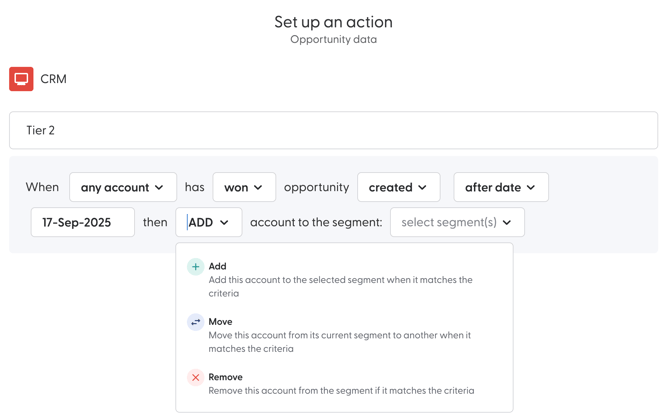
Here is a detailed description of what each action does:
Action Description Add The workflow adds an account that matches the trigger conditions to the destination segment(s). Move The workflow moves an account that matches the trigger conditions from the source segment(s) to the destination segment(s). Remove The workflow removes an account that matches the trigger conditions from the source
- Click Create to complete the creation process.
The Workflow will be active by default once created. Additionally, workflows are executed at least once per day. They can be executed multiple times per day, depending on the data source.
Use Case for CRM-Based Workflows
1. Keep your segments synchronised with your HubSpot CRM lists
Using this Workflow will keep your segment in sync with your CRM list. If you aren’t using lists yet, here’s the HubSpot documentation on how to create lists.
Aim: Manage your account lists in HubSpot as company lists and keep them synced with N.rich segments.
-
Create a new Workflow using CRM as the data source.
-
Select HubSpot Company List as the data type/account source.
-
Select the source HubSpot Company List and a destination segment
2. Use case: Pipeline acceleration with opportunity-based targeting
This use case helps sales and marketing teams stay focused on the accounts that actually matter right now. Accounts are automatically added when an opportunity is open and removed as soon as that opportunity is won or lost, so your team isn't dedicating time and effort to accounts that are no longer active, to accounts that are no longer active.
-
Create a segment
-
Create a new segment called Open Opportunities.
- This segment will be used to track all accounts that currently have an active opportunity.
-
- Create a workflow for open opportunities
-
Create a CRM-based workflow using Opportunity data.
-
Set the condition to trigger when an account has an open opportunity.
-
Set the action to add the account to the Open Opportunities segment.
-
- Create a workflow for won opportunities
- Create a second CRM-based workflow using Opportunity data.
- Set the condition to trigger when an account has a won opportunity.
-
Set the action to remove the account from the Open Opportunities segment.
- Create a workflow for lost opportunities
-
Create a third CRM-based workflow using Opportunity data.
-
Set the condition to trigger when an account has a lost opportunity.
-
Set the action to remove the account from the Open Opportunities segment.
-