
What are Intent-Based Workflows?
Intent-based workflows allow you to automatically add, move, remove, or sync accounts to your segments based on intent score from your intent reports. This allows you to act on buyer signals in real time and keep your segments up to date.
Workflows require data sources to be set up so that you can use the data sources and account activities as a trigger for your workflows. To use Intent as a data source, you need to have at least 1 Intent Report setup.
How to create an Intent-Based Workflow
-
Navigate to the Workflow tab.
-
Click on + Create workflow.
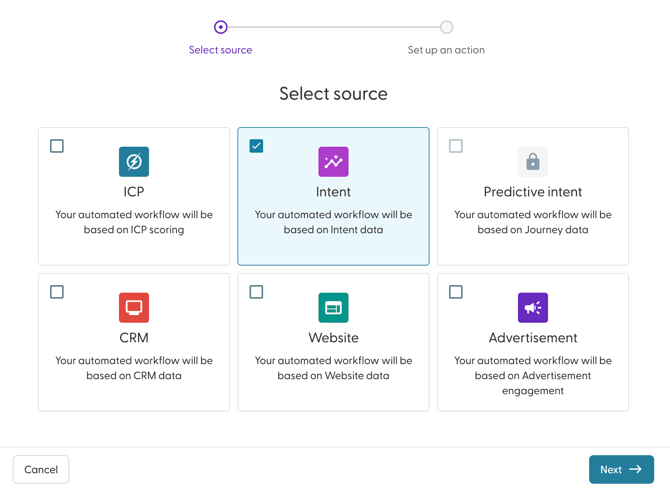
- Select Intent and click on Next.
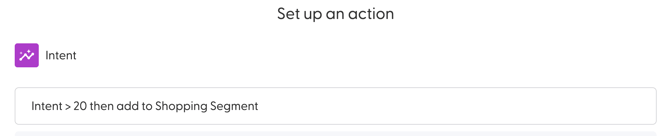
- Enter a name for your Workflow. Best practice is to use a descriptive name that includes:
- The intent report name
- The intent threshold
- The action being performed
Next, configure the conditions that will trigger the workflow. -
Define the Comparison operator. Choose how the intent score should be evaluated:
-
- Greater than
- Greater than or equal to
- Less than
- Less than or equal to
- Between
-
- Select the intent score that account must reach. You can select an intent score ranging from 1 to 95, available in increments of 5 (e.g., 5, 10, 15, 20, etc.).
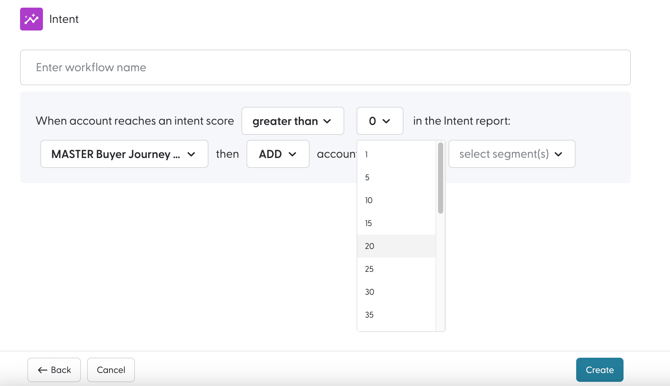
- Select the Intent report that the account should be selected from.
- Choose action that should be taken.
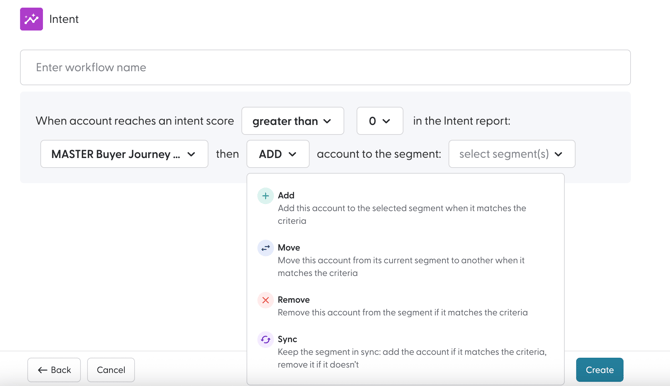
Here is a detailed description of what each action does:
Action Description Add The workflow adds an account that matches the trigger conditions to the destination segment(s). Move The workflow moves an account that matches the trigger conditions from the source segment(s) to the destination segment(s). Remove The workflow removes an account that matches the trigger conditions from the source
Sync The workflow adds and removes accounts from the destination segment based on changes to the data source to keep the same accounts across the destination and source. - Next, select the segment(s) that should be updated by the Workflow. There is no limit to the number of segments that you can choose here. You can also create a segment from this modal as well.
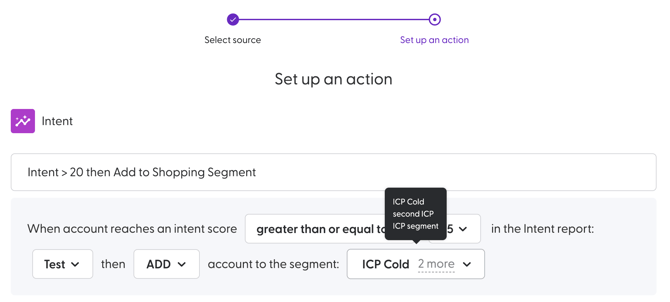
If you choose the action to move an accounts from one segment to another, you will be required to choose the segment(s) that they should be moved from and the segment(s) that they should be moved to.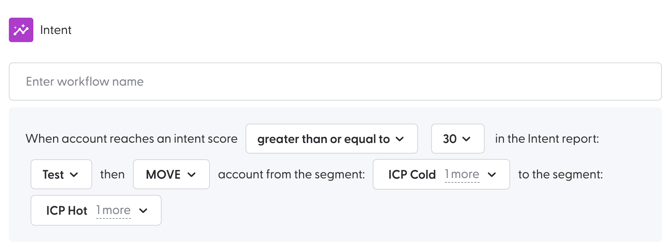
- Click Create to complete the creation process.
The Workflow will be active by default once created. Additionally, workflows are executed at least once per day. They can be executed multiple times per day, depending on the data source.
Use Case for Intent-Based Workflows
Nurturing Accounts Through the Buying Journey (Basic Version)
This use case demonstrates how to use intent data and workflows to identify in-market accounts and nurture them through the buying journey using ABM campaigns.
By combining intent reports, segments, workflows, and campaigns, you can automatically align accounts to the correct buyer journey stage and ensure they receive relevant, personalised messaging.
Create the Intent Report to capture accounts with buying intent.
1. Create a master Intent Report using Net New Demand preset (80/20) called Master Intent Report.
Create the Segments to be used in Campaigns
- Cold Accounts
- In-Market Accounts
- Engaged Accounts
- Hot Accounts
Create Workflows using the Intent Report to populate the segments
-
Cold Account Segment Workflow
When account reaches an intent score of 60 or less in the Intent report: Master Intent Report then SYNC account to the segment: Cold Accounts -
Hot Account Segment Workflow
When account reaches an intent score of 60 or more in the Intent report: Master Intent Report then SYNC account to the segment: Hot Accounts -
In-Market Segment Workflow
When account reaches an intent score of 60 or less in the Intent report: Master Intent Report then MOVE account from the segment: In-Market Accounts and Cold Accounts to the segment: Engaged Accounts -
Engaged Segment Workflow
When account reaches an intent score of 50 or less in the Intent report: Master Intent Report then MOVE account from the segment: Engaged Accounts and Cold Accounts to the segment: In-Market Accounts -
Cleaning Engaged and In-Market Segment Workflow
When account reaches an intent score of 30 or less in the Intent report: Master Intent Report then REMOVE account from the segment: Engaged Accounts and In-Market Accounts
These Workflows will result in:
-
Hot Accounts with Intent Score of more than 60
-
Engaged Accounts with Intent Score between 50 and 60
- In-Market Accounts with Intent Score between 30 and 50
Create Workflows to manage CRM Pipeline Segments
-
When any account has open opportunity created at any time then ADD account to the segment: #Open Opportunities
-
When any account has lost opportunity created in the last 180 days then ADD account to the segment: #Lost Opportunities
-
When any account has won opportunity created in the last 180 days then ADD account to the segment: #Won Opportunities
Create Campaigns to target the segments
Create campaigns with personalised content to the buyer journey stage in question.
-
Awareness Campaign targeting the segment: In-Market Accounts
You can optionally target Cold Accounts to warm them up by adding the Cold Accounts segment to your Awareness Campaign targeting and excluding the Engaged and Hot Accounts Segment. -
Consideration Campaign targeting the segment: Engaged Accounts
-
Decision Campaign targeting the segment: Hot Accounts
For these 3 campaigns, exclude #Open Opportunities, #Won Opportunities and #Won Opportunities in campaign targeting.