
Why Create a Workflow using Multiple Data Sources?
Multi-source workflows allow you to create more precise automations by by using data from more than one place. Actions only trigger when multiple important conditions are met, making your workflows more reliable.
Using multiple data sources helps you:
-
Increase accuracy: Reduce false positives by requiring more than one signal before triggering an action.
-
Capture higher intent: Combine behavioural signals (like website visits) with engagement signals (like ads) for stronger qualification.
-
Create smarter segmentation:Ensure accounts are added to segments only after meeting all required conditions.
-
Align marketing and sales signals: Use data from different systems to reflect real buying behaviour.
Supported Data Source Combinations
You can select any two of the following data sources per workflow:
-
Website: Based on website visits and on-site engagement.
-
Advertisement: Based on ad impressions, clicks, or engagement.
-
CRM: Based on CRM attributes or activity.
-
ICP: Based on Ideal Customer Profile scoring.
-
Intent: Based on intent data signals.Only two sources can be selected at a time.
Only two sources can be selected at a time. Also, Predictive Intent is locked and cannot currently be combined.
How to Create Website-Based Workflow
-
Navigate to the Workflow tab.
-
Click on + Create workflow.
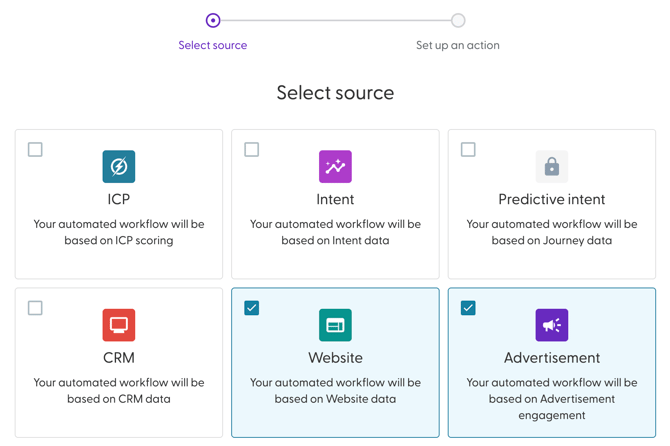
- Select the two data sources of your choice, for example Website and Advertisement then click on Next.
- Enter a name for your Workflow. Best practice is to use a descriptive name that described what the workflow does.
- Next, configure the conditions for each source.
-
Define the criteria for the first data source:
-
Example:
-
when account visited the website
-
4 or more times
-
during the past 3 days
-
-
-
Define the criteria for the second data source:
-
Example:
-
generated 1 or more engagements
-
choose the Campaign (only live campaigns will be shown in the drop-down list)
-
during the past 3 days
-
-
-
- Choose action that should be taken. You can choose to either add, move or remove.
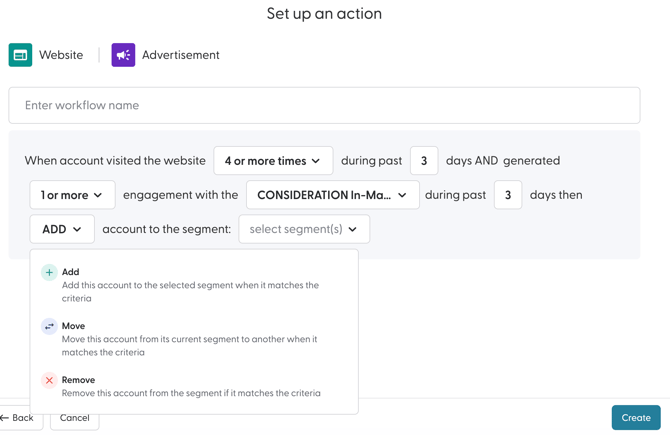
Here is a detailed description of what each action does:
Action Description Add The workflow adds an account that matches the trigger conditions to the destination segment(s). Move The workflow moves an account that matches the trigger conditions from the source segment(s) to the destination segment(s). Remove The workflow removes an account that matches the trigger conditions from the source
- Next, select the segment(s) that should be updated by the Workflow. There is no limit to the number of segments that you can choose here. You can also create a segment from this modal as well.
If you choose the action to move an accounts from one segment to another, you will be required to choose the segment(s) that they should be moved from and the segment(s) that they should be moved to.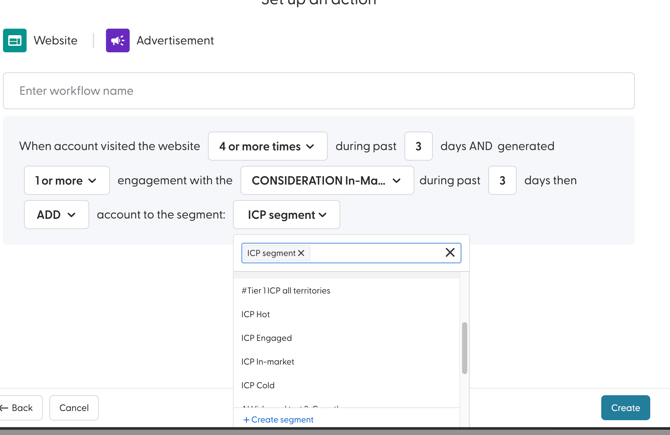
- Click Create to complete the creation process.
The Workflow will be active by default once created. Additionally, workflows are executed at least once per day. They can be executed multiple times per day, depending on the data source.